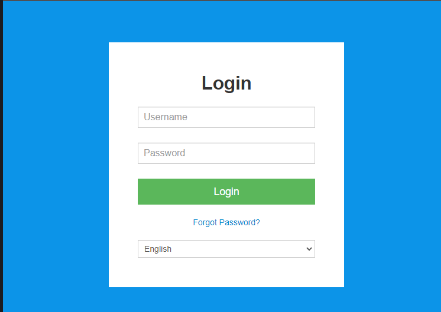
Login VPS Control Panel
Enter your Username in the format of: vmuserXXXXXXX, if you do not have the username, can refer to your email subject VPS Account Information, or contact support to get your username.
If you do not have a control panel password hit the option "Forget Password" to get your password.
If you have multiple VPS, select the appropriate one.

Click on Reboot to activate your Upgraded resources.
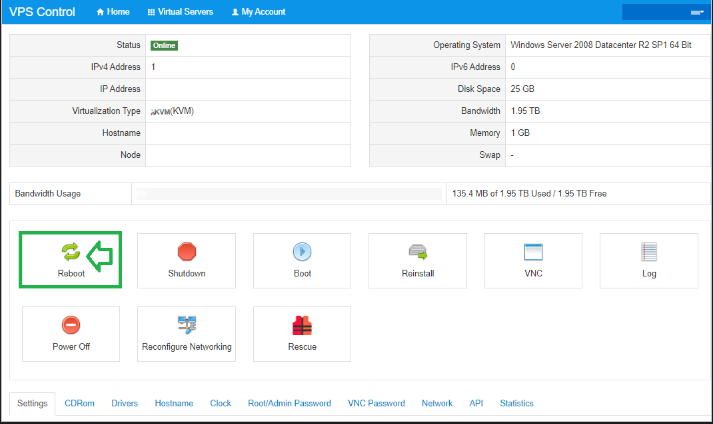
Please confirm by the answer “Yes” to reboot. VPS will be rebooting and ready in 3 minutes.
If you are upgrading your VPS Plan to higher resources, storage you are required to upgrade by extending/resizing the disk partition.
How to extend your new upgraded Storage - Windows Server VPS?
Windows Server 2012 and 2016
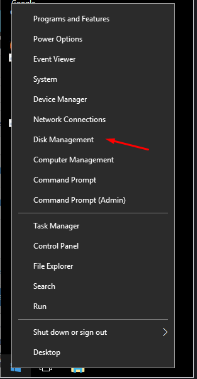
Step 1
Right-click  and then select Disk Management from the list.
Step 2
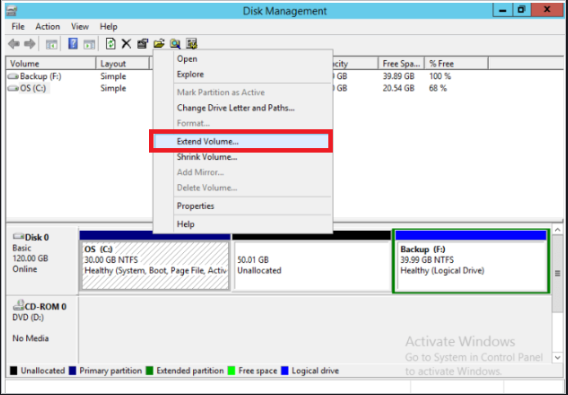
Right-click partition C: that you want to extend and select Extend Volume.
Step 3
Extend Volume Wizard will be launched, simply click Next or Change the amount of space manually.
Step 4
Click Finish to confirm and start extending.
Windows Server 2008
Step 1
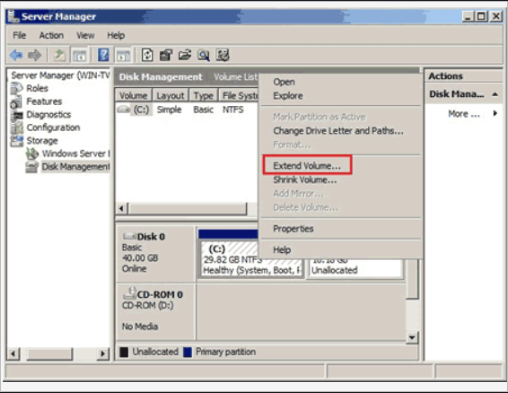
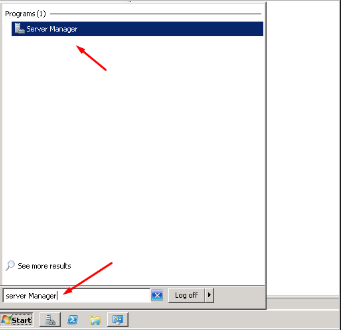
Go to Server Management, select on Storage > Disk Management.
Step 2
Right-click partition C: that you want to extend and select Extend Volume.
Step 3
Extend Volume Wizard will be launched, simply click Next or Change the amount of space manually.
Step 4
Click Finish to confirm and start extending.